• Learning Diary – Week One – Unity Creative CoreΒ 

    Hello and Welcome Back, 

    It’s been the Christmas break here in the UK, and December is always a busy month both personally and professionally for me, so my game development journey has taken a little backseat recently. However, a new year presents a fresh opportunity to learn, and I’ve made the decision to pause my development of my 3D Snakes and Ladders game, to head back to Unity Pathways and begin the Creative Core Pathway. This week, it’s all about setting up the projects ready to get stuck in.  

    This pathway is help you gain knowledge in the more creative aspects of the Unity Engine. If you’d like to follow the pathway yourself, you can do so here: 

    Creative Core Pathway – Master Unity 3D Art, Design & Animation | Unity LearnΒ 

    Starting the Creative Core Pathway 

    My journey begins with the first tutorial introducing the Creative Core Pathway. This tutorial gives a brief overview of the pathway itself and introduces you to some of the projects you may be working on as you progress.  

    Next, it’s a brief introduction to each of the creators who you will be working with to complete different modules on the pathway. As part of their introduction they explain how they got their first opportunities in the game development community and what it means to them. Quite an inspiring watch! 

    Next you’re given more details and a design document for each of the projects within the pathway. Though it’s perfectly fine to take just one of the projects and run through the pathway with that, I found two of the projects that I thought would give me skills to help enhance and complete my 3D Snakes and Ladders game. They are the Alien Video Game Shop and the Beachside Town. 

    Once I decided on my guided project, (or two in this case), it was time to set it up. This tutorial starts with a brief introduction to different types of render pipelines and their uses, and whilst it doesn’t go into too much detail it does allow you understand which render pipeline you will need. Additionally, the tutorial also provides a handy Render Pipeline Flow Chart to help guide you, which can be found here:Β 

    Render Pipeline Flow ChartΒ 

    As per the tutorial, I created a new Universal Rendering Pipeline (URP) project and imported the assets provided in the tutorial. Once I’d done that I was able to create a new scene for each of my projects, and drag the existing starter environment prefab onto each. There does initially appear to be some issues with the materials loading and some of them load pink, but I’m assured that will get rectified in one of the early missions.  

    Copyright for Creators 

    Once I’d done that I was ready to get stuck into my project, but before I could tackle the missions there were a couple of things to ready through first. The interesting one being how copyright works when it comes to game development and more importantly to game assets. The main takeaway I got from that tutorial was to always check the licensing, and even if the licensing says it’s free, it’s always good manners to reference the creator within the credits of your game.  

    Additionally, for each of my projects I’ll be maintaining and assets list on my blog, with links to where you can find assets and full credit given to the creators. I’ll also include some recommended sites within the site which host some cool assets.  

    Conclusion 

    It feels good to be back learning again! I love learning the Unity Essentials, and though I loved attempting to put my first game together after that I still always felt like I was missing pieces along the way, so I’m loving that I’ll be learning some new skills from the Creative Core Pathway, and look forward to applying those skills to my game at the end.  

    Until next time, 

    Dan 
  • Development Diary Week Four – Fixing Bugs and Choosing DiceΒ 

    Hello and welcome back.β€― 

    Life has a funny way of getting in the way some times, and between work and life commitments, my progress has been slow over the past few weeks. However, I’m still here giving it a go!β€― 

    The Spinning Player 

    At the end of the last sprint I was left with a bug where my player would randomly go off spinning as they moved along the board. In this sprint I decided to look into that bug and see if I could resolve it.β€― 

    After a bit of searching I managed to find that I was using the incorrect mesh on my player. I’d added a capsule mesh to the player for interacting with physics, but as a capsule would do, it cause the player to topple over when they moved. I changed this to a cylinder mesh and now my player moves much smoother, though not perfect. I suspect ideally I need to create a mesh that fits perfectly on my character, but that’s a skill I haven’t learnt yet. Additionally, when my player moves their limbs are still static, so I think there’s some more research a learning I need to put in the get the player moving just how I want them too.β€― 

    The were also some additional physics properties I needed to add to my character to help them stay up straight. I realised that I needed to add a Physics Material to my character and set the Dynamic Friction, Static Friction, and Bounciness to zero. This would ensure that my character wouldn’t slip and slide all over the place.β€― 

    Strengthening the Environment 

    Whilst working out my player movement I also noticed some additions I needed to make to my environment. First, if I continued to let my player carry on walking to the edge of the board, they would fall off. That’s not supposed to happen so I added walls and columns at the end of each row to make it look like the character is contained within the ship rather than able to fly off into open space.β€― 

    I also added a ceiling to my last row to enforce that contained environment. Now it looks a lot more like my character is actually travelling through a ship or a space station. After a few more minor adjustments I can now say that I have a game board where a single player can move, step onto the teleport pads and make their way to the top of the game/finish line. Great progress! 

    Adding the Dice Area 

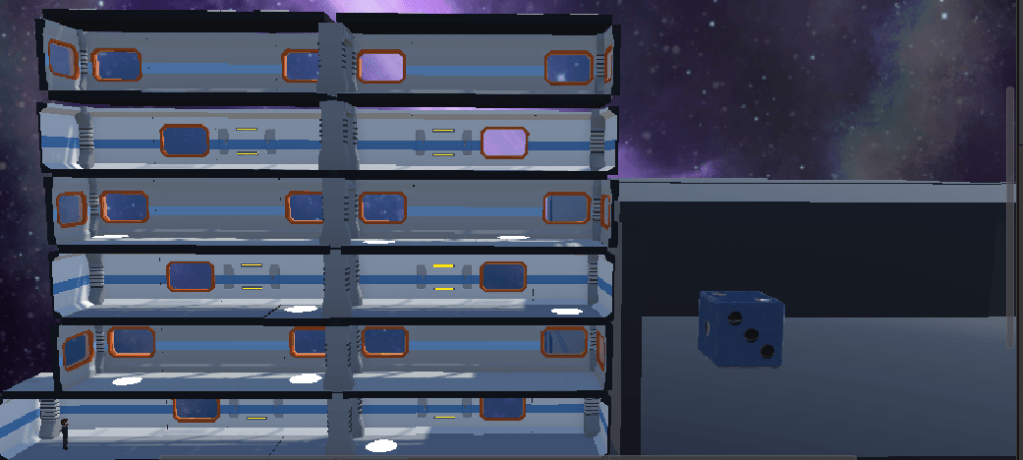
    Now that I had the foundations of my game board and player, I turned my focus for the rest of this sprint to creating my dice rolling area. I decided this would be a small 3D space in the bottom right of the screen where the die could roll about and the result be shown in a UI element at the top. 

    I did a little research on how to do this and found the below tutorial made by Midnight Oil Software LLC which gave me a great starting point. 

    After watching this I created my 3D rollable area and picked a die from the Unity Asset store. Like the team in the tutorial I picked the d6 die Dice from Armor and Rum.Β Β 

    Dice d6 game ready PBR | 3D Tools | Unity Asset StoreΒ 

    After adding the die in the rollable area, I next need to create a script for rolling the die. The tutorial itself didn’t quite give me everything I would need to script the die, so I thought I’d come back to that in a future sprint after I’ve done a little more research.  

    Conclusion 

    Despite struggling to get time to develop in places, I do feel as though I’ve come a long way over three sprints. I’m enjoying the progress that I’ve made so far, however, I can see that I’m starting to hit the limits of my knowledge so far and find myself researching snippets of how to do stuff more and more. Therefore, I’ve decided to pause my development on my game for the time being and head back to Unity Pathways. 

    First however, I’m going to be using the next couple of weeks to start work on the other side of my game development journey, which is to write about my own personal history with computer games. Games have played a massive part in all stages of my life so far, so I’m looking forward to revisiting some of the past games and consoles from throughout my history on this earth.  

    I’ll be releasing some of that journey on this blog over the Christmas period, before heading back to Unity Pathways in the new year to carry on my development journey.  

    Until next time, 

    Dan 
  • Development Diary Week Three: Creating my “Ladders”

    Hello and welcome back! 

    This week has been a quiet one, but with some progress. Last time we had built our board and added a player with movement on it. This week, I’ve created a basic teleport pad which is my first “Ladder”, and added in scripting to automatically move the player. Once that worked I created other teleport pads and found my first bug which causes my player to spin out of control. 

    Creating the teleport pad 

    In my concept of Snakes and Ladders I’ve decided to swap the “Snakes” and the “Ladders” for portals. If you land on a green portal you get teleported up to its matching end, but if you land on a red portal you get teleported down to its matching end. This keeps it style with my space station theme whilst still including the concept of snakes and ladders.  

    I created a basic teleport pad using a 3D Cylinder shape. I squished it down to look like a disc and placed on the floor tile. At the moment it’s a basic shape with no colouring or effects, but once I have the foundations of the teleport pad working I’ll spruce it up in a future sprint. Once I had my basic shape I added a collider to it and set the “Is Trigger” property to ticked. This will allow a script to run once the player steps on the pad.  

    Doing a quick google search I found the following script in the forums, provided by PurifiedBananas. (Nice handle).  

    I created a new teleport script in my project, added the code provided here and added it to my teleport pad. I also needed an end pad where my player would teleport too, so added that and assigned that as the target location used by my script. Finally I added a collider to my player to help initiate the script when stepping on the pad.  

    It worked, and first time too. When the player steps on the pad they are instantly transferred to the end point pad, which in this instance is on the next floor up. There is one issue however, when the player appears at the end point they then spin off the board into oblivion! That’s not right, and I suspect it may be due to the fact that I’m not using gravity on my player properly and the colliders on the floor pieces to stop the player falling through them.  

    It looks like I have my first bug to investigate! 

    Organising my project for easier navigation 

    Before checking out the bug however, I decided to add in my other “Ladder” portals so that I can test them thoroughly once I’ve resolved the spinning player issue. At this point I realised that the naming convention of my game objects wasn’t the best and I could quickly lose where my teleport pads should be if I didn’t rename them. 

    Rather than grouping game objects as floors and individual spaces within them I’ve decided to rename each individual space to the number it will be on the game board, then group them as the game board numbers would look at the end. This will make it easier to navigate and make sure then when I place a teleport pad on the board I’ll be able to find the space it’s end pad should sit on easier.  

    Conclusion 

    As mentioned, a shorter week of progress this week, but some progress none the less! I’ve now got my “Ladders” in place and working, though at some point I’ll need to change the logic so that the teleport code only runs if the player STOPS on the pad. Currently it will run as soon as the player touches it. That’s for a future sprint however. 

    Next week will be my last sprint before a break for the holidays, so I’d really like to focus on resolving the issue with the player spinning, and once I have that sorted I can come back to more work on the portals. Hopefully, I can get to that before the holidays.  

    Until next time, 

    Dan 
  • Development Diary Week Two: Board Creation and Basic Player Movement

    Hello and welcome back.  

    After completing the Unity Essentials Pathway from the Unity Learn website, I’ve decided to have a go at putting my newfound skills to the test by creating my first 3D game. My 3 year old son loves a game of Snakes and Ladders, so I’ve decided to create a 3D Snakes and Ladders game with a space feel to it, so that we can play it together and he can see what Daddy has made. πŸ˜Š 

    Sprint One – Board Creation and Basic Player Movement 

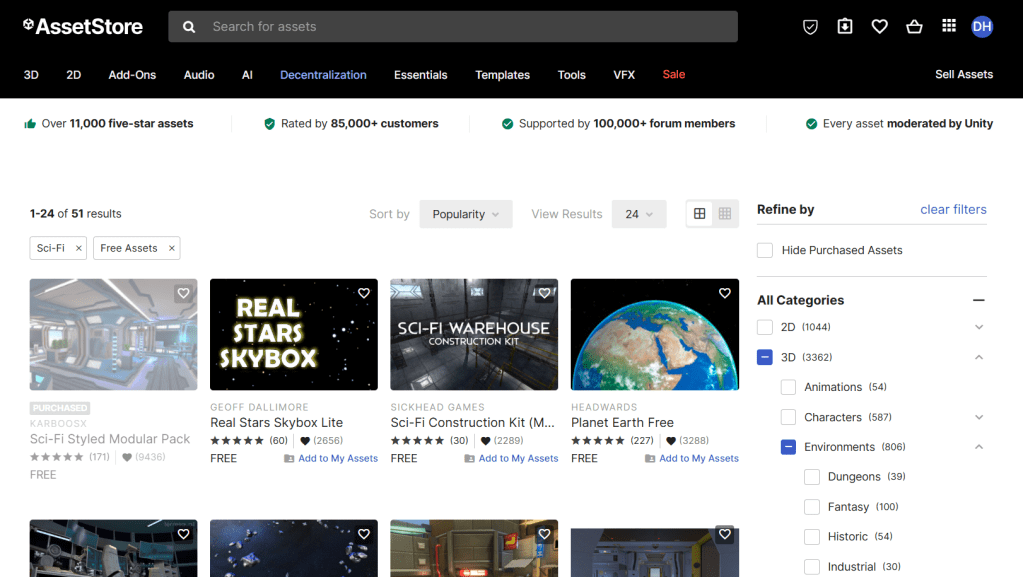
    For my first sprint I’ve focused on building my 3D board first. I spent a little time looking around the Unity Asset Store, focusing on the free assets to see what I could make with them. There is a great selection of both Paid and Free assets in the Unity Store, and if you’re just starting out like myself, then I’d highly recommend using that as your starting place for assets.  

    Something that I didn’t learn about in the Essentials pathway is that there are different types of resolution and renderings of assets, so depending on the assets you find you may experience some issues when using them in your project.  

    I found that some of the higher res assets use different rendering pipeline than what I have as the default so decided to stick to the low poly assets and made a note to read up more about the different types of rendering and assets later.  

    Eventually I found this Modular Sci Fi Interior from G.Forge and decided to use that for making my 3D board.  

    Sci-Fi Interior Modular Kit [Demo] | 3D Sci-Fi | Unity Asset StoreΒ 

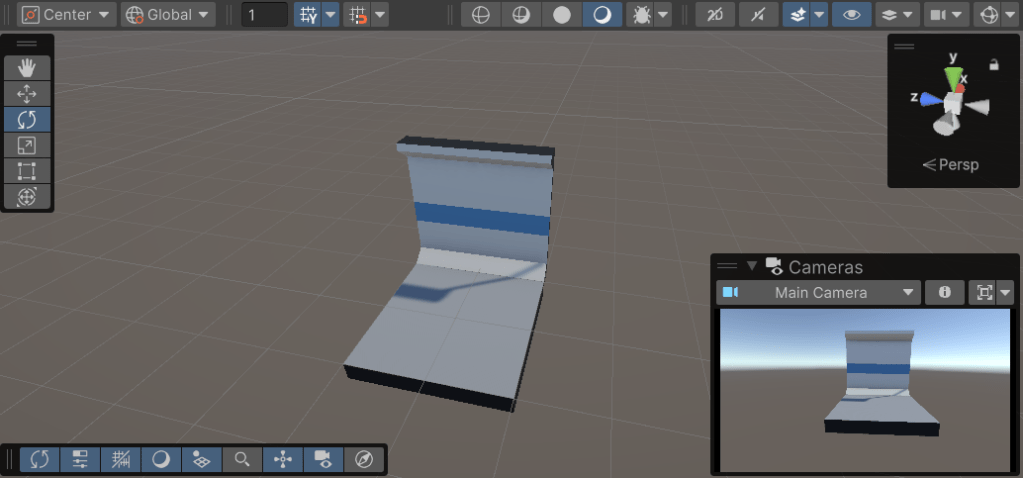
    Using this I created my first space on my board which consists of one floor piece and one wall piece. This is space one on my board.  

    After making my first piece I realised that I needed to add some Story Point Estimates to my work Items in JIRA so that I can track my velocity and work out my baseline after my first few sprints. For story point scoring I’ve decided to go with the basic t-Shirt sizing based at the following rough estimates: 

    1. Extra Small – Less than an hour 
    2. Small – Couple of hours 
    3. Medium – Half a day (4 Hours) 
    4. Large – Full day (8 Hours) 
    5. X.Large – Epic – Multiple days – Therefore needs to be split down further. 

    Moving on to my next work item I then created spaces two, three, and four. Spaces two and three are created separately as new spaces, whilst space four is a duplicate of space one, adding a little mirroring to the board.  

    Looking at the spacing on the board and thinking about the dimensions of the players screen I decided it would be better to have 8 spaces per row and 6 rows, totalling 48 spaces for my board. I added an archway in the middle of each row, and then duplicated the first half of my board and laid the pieces as a mirror image of the left side. This made my first row of the board. 

    Finishing out the game board 

    With my first row completed I was then able to use an alternative version of the same assets to create my second row. Using the alternative materials means it’s easy to distinguish the rows and looks quite cool. Once I’d created my second row, it was then easy to duplicate the rows and their alternatives to create the remaining rows of the board giving me the six rows I desired.  

    At this point my game board looks fairly solid. There are some extra touches I’d like to add near the end and they do need some UI elements to add numbering to each space, but so far it looks pretty good. I decided to add a Skybox to the scene so that the background has an out of this world view to it and adds to the feel of being on a space station. I’ve added the following Skybox from Sean Duffy and it looks pretty good on screen: 

    Deep Space Skybox Pack | 2D Textures & Materials | Unity Asset StoreΒ 

    Adding a basic player 

    Now that the basic board is ready it was time to add features such as my “Snakes” and “Ladders”. For these I fancy having little portals that activate when the play stops on them and can teleport them to the corresponding spot. Some would send you further up the game board and others would send you back down. To test this however, I first need a dummy player that will be able to activate the portals by stepping on them.  

    After another scout of the Asset Store I settled upon a basic player, but was having trouble rendering their materials in the project again. A quick search showed me that I needed to convert the materials to the latest rendering settings, and doing so got them working again and looking good. Finally I added the player controller from the Unity Essentials Pathway into the project and attached to the player and success! I now have a basic player who can move around the project.  

    That player was provided by EMD Assets: 

    Character Pack – Lowpoly FREE | 3D Humanoids | Unity Asset StoreΒ 

    Obviously, by the end of the project the dice and scripting will control the player movement, but for the purposes of early testing this script is handy to use.  

    Wrapping up the first Sprint 

    My first week designing my Snakes and Ladders game has been a great success and I’ve achieved much more than I thought I would do with little in the way of setbacks. Planning out for my next Sprint, I’d like to focus on placing and coding my portals next week so that my player ports when they stop on them. The challenge here is going to be allowing the player to step over them if the dice roll is higher. I sense some programming challenges coming up! πŸ˜Š 

    Until next time  

    Dan 

  • Development Diary Week One: Designing My Snakes and Ladders Game

    Hello and welcome back! 

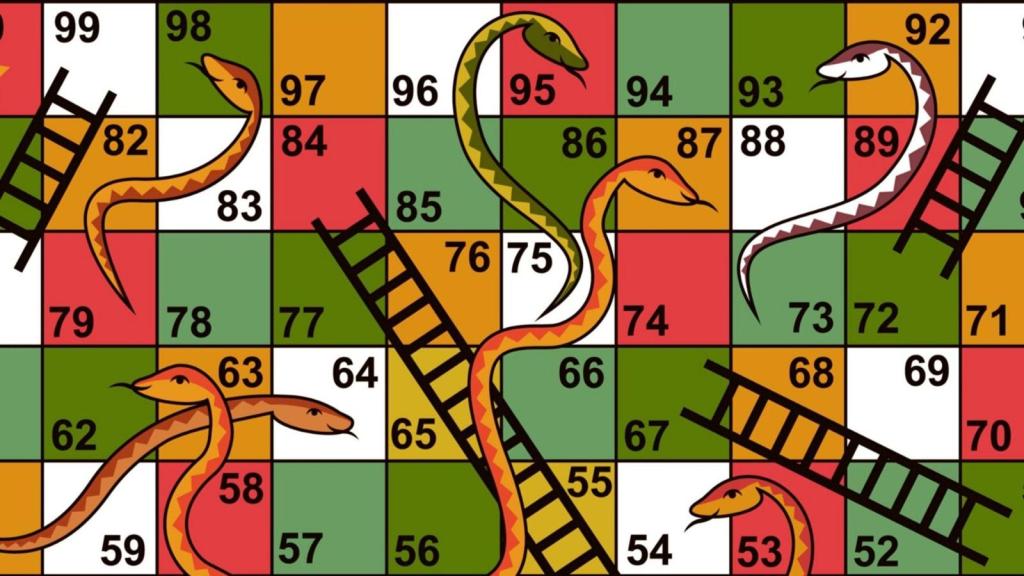
    For those who have been following my learning diary, this is the first of my Development Diaries, where I’ll be focusing on creating my first solo game, Snakes and Ladders! 

    Introduction 

    For my first solo project I’ve decided to make a version of Snakes and Ladders, mainly inspired by my little boy. He’s about to turn 4 in a couple of months and one of his favourite board games is Snakes and Ladders. He has his own Amazon Kid’s tablet, so I’d love to try and make something that we could play together on that.  

    I love the idea of creating a board that looks a little like a space station with levels and ladders that player climb up and pipes that they would slide down if they land on them. Taking a quick look in the Unity Asset Store there looks like some really good free assets there that I could use and I think they would look quite cool.  

    This solo project is also a great opportunity for me to put my primary skills to good use. Whilst I have a background in Software Development, I also currently work as a Project Manager, and have previously worked as a Software Development Manager. In both of those roles I’ve used Agile methodologies to deliver projects, and so I’ll be using the Scrum methodology to help deliver my game. 

    My aim here isn’t to have a fully polished and working version of the game. There will be some stuff that I don’t know how to do yet but this feels like something I could have a really good go at and get some good headway on, so I’d really like to spend a few weeks developing that before choosing my next Pathway. 

    Starting my first solo game – Snakes and Ladders (Kind of) 

    Ok, so time to get stuck in! My first move is to plan out at least some of the high level milestones within my project and get an idea of how much I can fit into a weekly sprint, which should give me an idea of overall development time.  

    For my first steps, I’ve setup a scrum project within Jira. I’ve worked with Jira for many years now and some I’m very comfortable with it. It’s an easy to use tool, and for a solo project such as mine is free to work with. It also makes it easy to create Epics, setup Sprints and backlog items, and to create a roadmap of your project.  

    I’ve started by setting up 5 epics within my project: 

    1. Game Board 
    2. Players 
    3. Dice 
    4. UI and Menus 
    5. Audio 

    I may add to these as the project progresses, but this is certainly enough to get me started. Within these epics I’ll then create work items within my backlog that will form my sprint each week. I’ve decided to start with the first Epic, which is the game board.  

    For my first sprint, I intend to setup the project, find and import assets for my game board, and then start on the first rows of my 3D Snakes and Ladders.  

    If I have time after that I’ll add more items to my sprint. Once I get about 3-4 sprints in then I should get a rough idea of my baseline and therefore will be able to plan my future sprints more effectively. Right now however, it’s about seeing what I can get through within a week.  

    My sprints will run during the working week, at roughly an hour per night, giving me five hours per sprint. I’m keen to see what I can achieve in that time and may use those results to either up my development commitment each week or reduce it in order to balance out family time as well.  

    With my first sprint all setup, I’m ready to get started. Let’s get creative!  

    Until next time, 

    Dan 

  • Learning Diary Week Five: Finishing The Unity Essentials Pathway

    Hello and welcome back! 

    This week has seen me finish off the Unity Essentials pathway and begin to plan my first solo project to put my skills in action. 

    Publishing Essentials – Add a bonus sceneΒ 

    In this lesson I chose one of three options to create a bonus scene within my portfolio. I decided to go with Option 1 to combine all my rooms together as Option 2, to make an art gallery, didn’t appeal to me. Option 3, to build my own 3D open world collectible did appeal to me, however, it’s similar to what I’m thinking about for my solo project, so I decided to give this one a miss.  

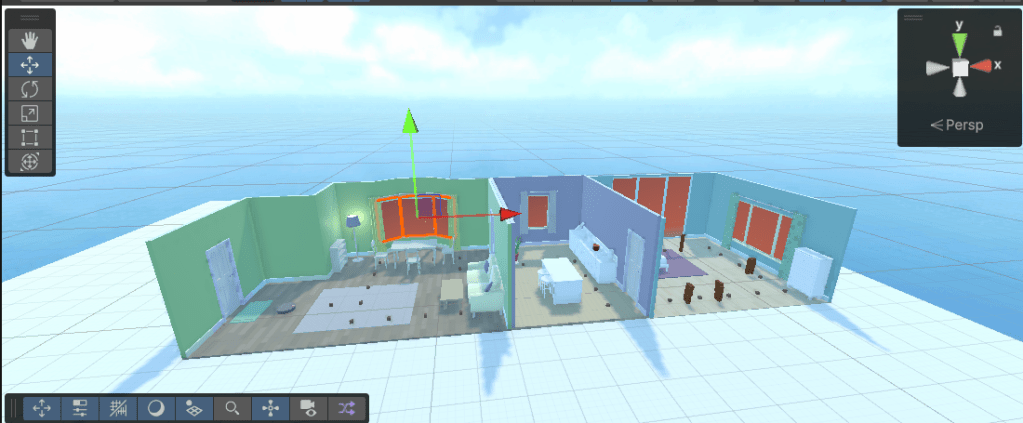
    First I combined all my rooms together, then added more collectibles throughout the other rooms to extend the game. I also added some of the blocks from the child’s bedroom to act as obstacles for the player to drive through.  

    Finally I played with adding a skybox to my scene and changed the material on the windows of each room to reflect the same colours as the skybox. This was something that I didn’t learn within the pathway, but a quick play around with the settings and components meant I could add the skybox in with little effort.  

    You can find an updated version of my portfolio with the bonus scene, here: 

    Unity Play | Dan’s Unity Essentials Portfolio 2 gameΒ 

    Capture a video of your project 

    To finish off the mission, (and the pathway), I learned how to add the recorder package to my project using the Package Manager. The recorded a demo of my bonus scene, which you can watch below.  

    Pathway Completed 

    And with that I’ve completed the Unity Essentials Pathway. I’ve really enjoyed getting stuck into the basic fundamentals of developing in Unity over the past few weeks and can now say that I know how to do the following within Unity:  

    • You explored the Editor interface. 
    • You mastered 3D scene navigation and passed the Scene view flying test. 
    • You created a mural in the Scene view. 
    • You added furniture to a kid’s bedroom. 
    • You made a bouncy ball with a custom material and physics. 
    • You made a tower of prefab blocks. 
    • You configured the skybox, lighting, and camera. 
    • You create an immersive soundscape in a kitchen. 
    • You added a player movement script. 
    • You coded a simple rotating object. 
    • You coded a collectible that spawned a particle effect. 
    • You set up a 2D room with specialized 2D components. 
    • You completed a 2D puzzle game, including an animated 2D pet. 
    • You set up your work as a single portfolio project. 
    • You published to WebGL. 
    • You recorded a video of your work. 

    Next up on my learning journey, I’ll be taking on the Creative Core Pathway to really get to grips with Unity’s engine. Before then, however, I want to have a go at putting my new skills to the test. I’ve decided to start my first solo project which is to build a 3D version of Snakes and Ladders. I’ll come back to the Unity Pathways soon, but for now, I’ll be writing up my first Development Diary soon and getting stuck into making 3D Snakes and Ladders! 

  • Learning Diary Week Four: Programming Essentials, Unity 2D Essentials, and Publishing Essentials

    Hello and welcome back! 

    This week has been another bumper week where I managed to finish off the Programming Essentials mission, all of the 2D Essentials, and learn the basics of publishing in Publishing Essentials. This has all lead to publishing my first portfolio game, which you can find here: 

    https://play.unity.com/en/games/15d544c7-1fc1-4254-b0eb-0d2d04f46ab2/dans-unity-essentials-portfolio

     If you’d like to learn more about the Unity Essentials pathway you can find out more here: 

    Unity Essentials Pathway – Learn Game Development for Beginners | Unity LearnΒ 

    Lesson Four – Programming Essentials: More things to Try 

    Rounding out my Programming Essentials mission with this lesson I had the opportunity to add to my existing scene. First I added in code to allow my player to jump, which was an easy challenge to code. Secondly, I added triggers and code to the door elements of the scene so that the door opened when the layer drove near.  

    The final challenge was to use generative AI to create a script to simulate sunrise and sunset. I didn’t like the feel of this challenge as I thought it felt a little early to be relying on AI to create scripts, so skipped this challenge. It may be one however, I come back to at a later date.  

    Finally the mission ended with the quiz, in which I managed to answer all six questions correctly and gain a 100% mark.  

    Mission 5 – 2D Essentials 

    Moving on from Programming Essentials it was time to look at 2D Essentials and build my first 2D game. This mission gave me a good taste of what making a 2D game would be like, and since I haven’t actually decided if my first game would be 3D or 2D yet it was good to get the experience of both within this pathway. 

    Lesson One – Setup a 2D Room 

    The first thing that differentiates haw to create a 2D and 3D game is how you navigate and work within the environment to setup your scene. Obviously, 2D objects only work within two dimensions rather than three and how you view the scene is quite different.  

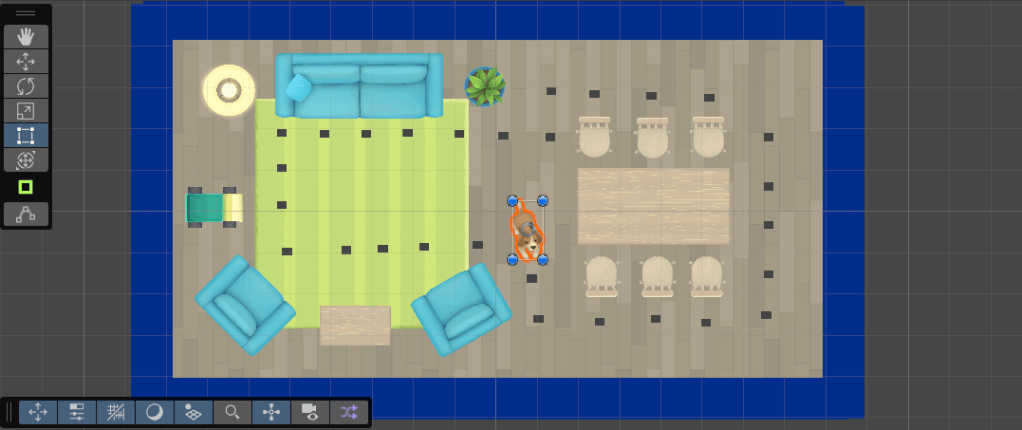
    After setting up my environment to be more 2D-centric, I then began the task of building my scene, which was a single room with furniture that we then add colliders and rigidbodys too in order to allow them to be moved by the player. 

    I also discovered how to use the Rect tool to move and scale the objects within the scene. I also learned how to duplicate objects, in this instance a chair, to be able to create a table with six chairs at it. Finally, I learnt how to set the aspect ratio of the scene during playtesting so that it matches the view that the user will see.  

    Lesson Two – Complete your 2D Puzzle Game 

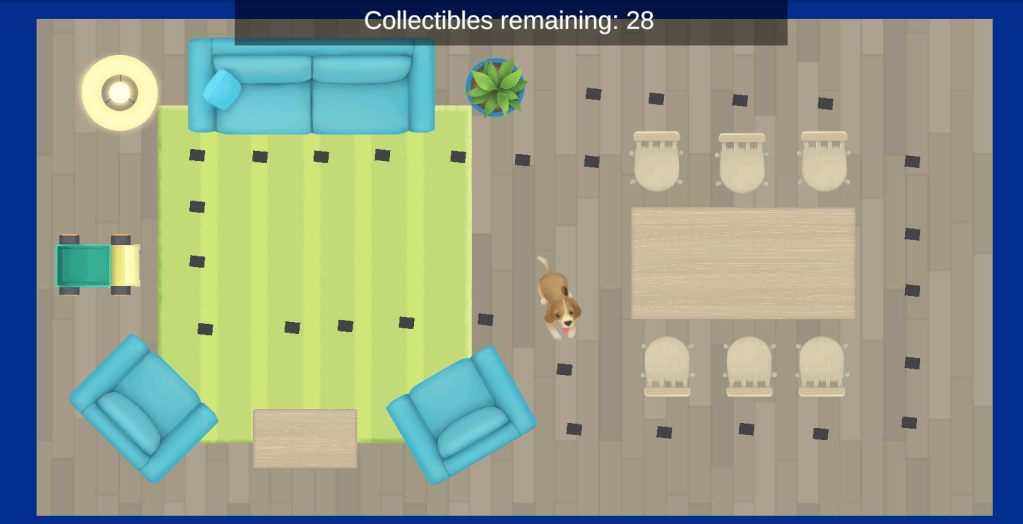
    Next we finished setting up our scene by adding a rug sprite, and it was here I learned how to set the Order in Layer property of controls so that the rug appeared to be underneath the furniture in the room.  

    We also added out collectibles to the scene with rigidbody and collider components and added scripts to them to allow the collectibles to be collected. This gave me a basic scene where a player can traverse around the furniture in a room to collect items.  Finally we added a banner to our scene that showed the number of collectibles that were still available.  

    Lesson Three – Add an animated Pet 

    In this lesson I was introduced to the concept of sprite sheets and Unity’s Sprite Editor, which I used to slice a sprite sheets into individual images and animated them to create a dog wagging his tail. We then added that to our scene and added rigidbody and collider components so that the player can gently nudge the dog out of the way as they collect items. 

    Lesson Four – 2D Essentials: More things to try 

    I rounded out the mission with some more challenges. The first was to add some colour to our walls so that the barriers of the room stood out. The second challenge was to change the layout of the room to make it more challenging for the player.  

    Whilst I did start to change the layout I realised that my three year old son would enjoy playing this little game, so changed the layout with him in mind. He loved it and spent a good 30 minutes playing with the scene and moving items, then resetting to get the collectibles again. He particularly liked nudging the dog about on screen. Poor dog! πŸ˜Š 

    Finally, we ended with the Mission quiz, in which I got all 5 questions right, gaining another 100% mark. I do think the quiz at the end of each mission is a good way to help you feel confident in the knowledge your gaining through this course.  

    Mission 6 – Publishing Essentials 

    Now with our little games built it was time to look at publishing our portfolio for others to view. The first two lessons of this mission focus on tidying up your game ready for publishing. Adding some UI elements and a menu to it and setting your build and player settings to determine which scenes you will include and how the application is displayed on the target platform.  

    Finally, I published my portfolio to Unity Play to make it available to anyone with a browser! 

    Summary 

    Well four weeks in and I’ve published my first portfolio! I can’t tell you the buzz this has given me over the weekend, knowing that something I’ve created is out there. Yes its basic, and yes it needs a lot of work, but I’ve created that and that’s more than what I could have done four weeks ago! 

    I’m loving the pace of my learning and being able to produce tangible results.  

    Next week, I’ll focus on the additional challenges to round out my portfolio a little, and then finally finish the Pathway. I’m going to take a little time before choosing the next pathway to start planning my first game post tutorials and to tidy up the blog a little. I’m looking forward to seeing what I can do in my first post pathway challenge.  

    Catch you next time! 

    Dan 

  • Learning Diary Week Three: Audio and Programming Essentials

    Hello and welcome back! 

    This week has been another bumper week of learning, focusing first on the Audio Essentials, before making a little game where you pick up collectable items in the Programming Essentials Mission. 

     If you’d like to learn more about Unity Essentials you can find out more here: 

    Unity Essentials Pathway – Learn Game Development for Beginners | Unity LearnΒ 

    Mission Three – Audio Essentials 

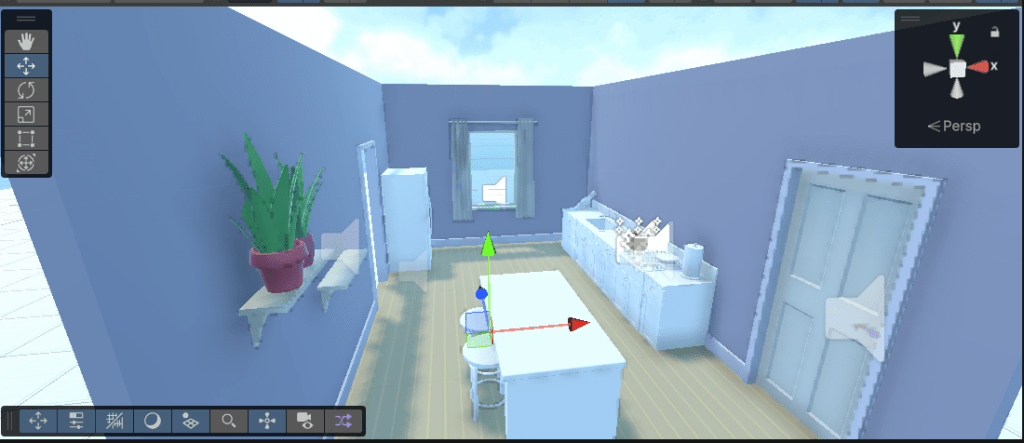
    In this mission we use a kitchen prefab to create a scene with different sounds. We create an audio source for a boiling pot of water, as well as add background music and later add a humming sound for the refrigerator and some birds by the windows.  

    Lesson One – Create an immersive soundscape 

    In this lesson we learned the purpose of an audio source and audio listener, before adding a boiling pot to our scene and assigning it an audio source component, then we assigned the pot a sound, before setting the effect from 2D to 3D spatialized audio so that the sound played when approaching, but drowned out when walking away.  

    Additionally, we added some bird sounds near the windows and doors, also in 3D, and added some background music to the scene. I chose some suspenseful background music to add a creepy feel to the empty room with just the boiling pot. (Fatal Attraction anyone?) 

    Lesson Two – Audio Essentials: More things to try 

    After learning the basics of audio within the scene this lesson challenged me to put those skills to the test. First I added a 3D humming sound to the refrigerator which was quite easy to do. Secondly, we added some new background music to the scene. This was a great opportunity to scour the Asset Store and see what free assets they have and I chose some relaxing background music to give me scene a more serene feel.  Finally, I experimented with different reverb zones before settling on the Room preset. 

    Lesson Three – Mission 3 Quiz 

    The Audio Essentials mission finished with a quiz, which I scored 100% on this time. My first 100% mark! πŸ˜€ 

    Scored: 3/3 

    Mission Four – Programming Essentials 

    Mission Four has me learning the basics of programming in Unity. Whilst I was walking into this mission with an advantage as I was previously a C# Programmer, this section of the course is laid out for anyone who has no programming experience, so if you’ve never written code before, don’t worry, this is actually a good introduction.  

    Before diving into the lessons for this mission, check that you have and IDE Environment installed which you can edit the code from. If you haven’t don’t worry, just head to your installs in Unity Hub, look for your editor version, click Manage, and choose Add Modules. From there you’re able to install Visual Studio Community, which is what I’m using here and also recommended by Unity. 

    Lesson One – Add a movement script 

    Our first lesson for this mission shows us how to create a new script component within Unity and add it to your GameObject, before opening the script within your IDE. Here we get our first glance of how scripts are structured, though if your first starting out it may not make too much sense to you yet. 

    Finally we add the camera as a child of the Player game object so that it follows the player in Play Mode, and we learn how to temporarily adjust properties such as speed so you can determine the right value to use. 

    Lesson Two – Create a rotating collectable 

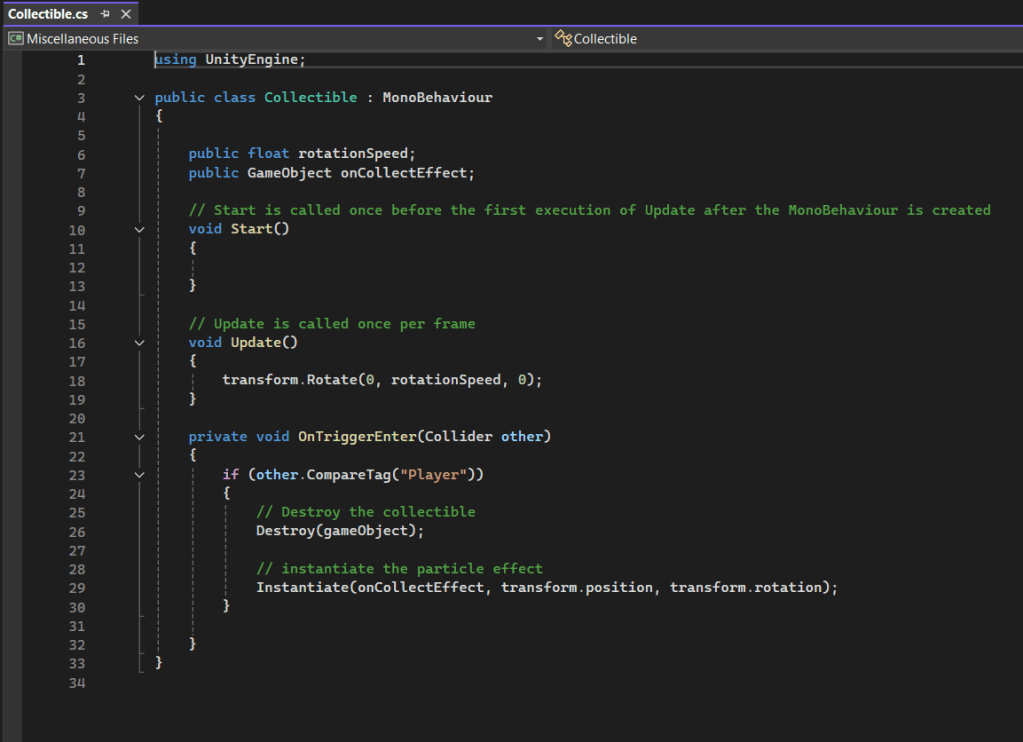
    Next we start to dive into the script itself and take our first steps at writing code. We learn about Using statements and the MonoBehaviour class that all Unity scripts use. We take a look at the first methods within the script, Start() and Update(), before adding a transform function to the Update() method which allows us to rotate the collectable.  

    We also learn how to apply the correct data types in code, declare new custom variables, and how to apply correct naming conventions to variable and methods. This is a busy lesson!  

    Lesson Three – Collect the collectable 

    To round out the week I learned how to duplicate my rotating collectable and add code to allow it to be collected. To do this, we first setup a collider as a trigger instead of a physical boundary, this allows the player to move through the object. Second we need to apply the OnTriggerEnter() method to detect the collision between the player and the object. Within that we use the destroy function to remove the object from the scene. 

    Next to add a little flair to our scene, we add a particle effect as a visual effect to the collectible using the GameObject public variable within our code, then calling that using the Instantiate() function to blow up our collectible as it’s collected.  

    Finally we learn how to apply tags to GameObjects in order to be able to identify them within a script, and used that tag within an IF() statement to identify if it was the player colliding with the object. 

    Summary 

    Phew! What a week! It’s been a busy one, and I really feel as though I’m starting to get the basics of working with Unity now. I’m looking forward to finishing off the programming mission over the next week, and hope to take steps into the 2D mission next week too.  

    I really feel as though I’m picking up some basic skills now and have started to think about setting myself a little project once I’ve completed the Unity Essentials Pathway to test out my new skills with a basic game. I won’t share to much today, but keep your eyes out over the next couple of weeks for my first independent project.  

    Catch you next time, 

    Dan 

  • Learning Diary Week Two: Unity Editor Essentials and 3D Essentials

    Hello and welcome back. 

    This week has been a busy one in my learning journey. First I finished off the Editor Essentials mission on the pathway, then proceeded through the 3D essentials mission, which I managed to finish within the week.  

    If you’d like to learn more about Unity Essentials you can find out more here: 

    Unity Essentials Pathway – Learn Game Development for Beginners | Unity LearnΒ 

    Finishing the Editor Essentials MissionΒ 

    Lesson Five – Design a mural in the scene view 

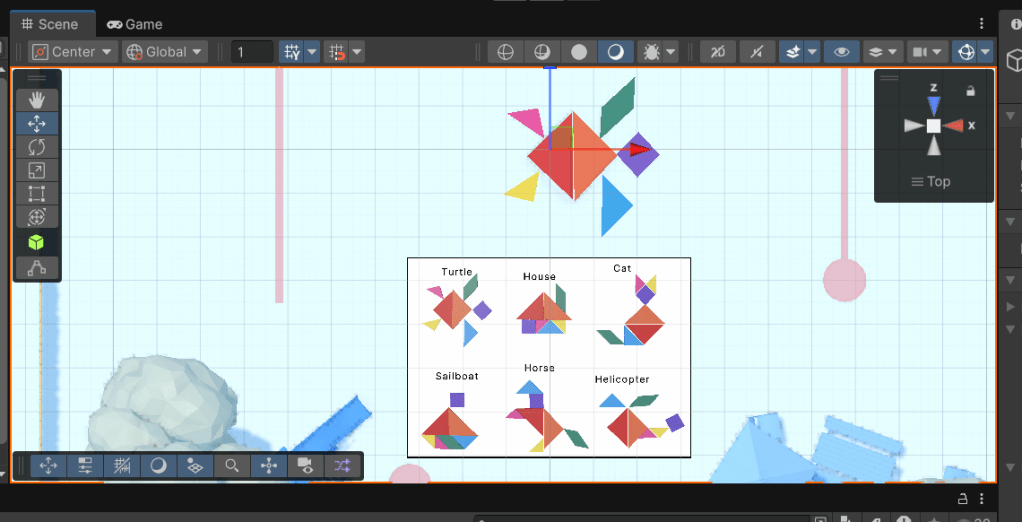
    In this lesson we moved objects around on the floor of the playground to create a mural of a turtle. This lesson allowed me to learn the difference between Global and Local coordinates, and allowed me to practise my skills with the Move and Rotate tools.  

    Lesson Six – Editor Essentials – More things to try 

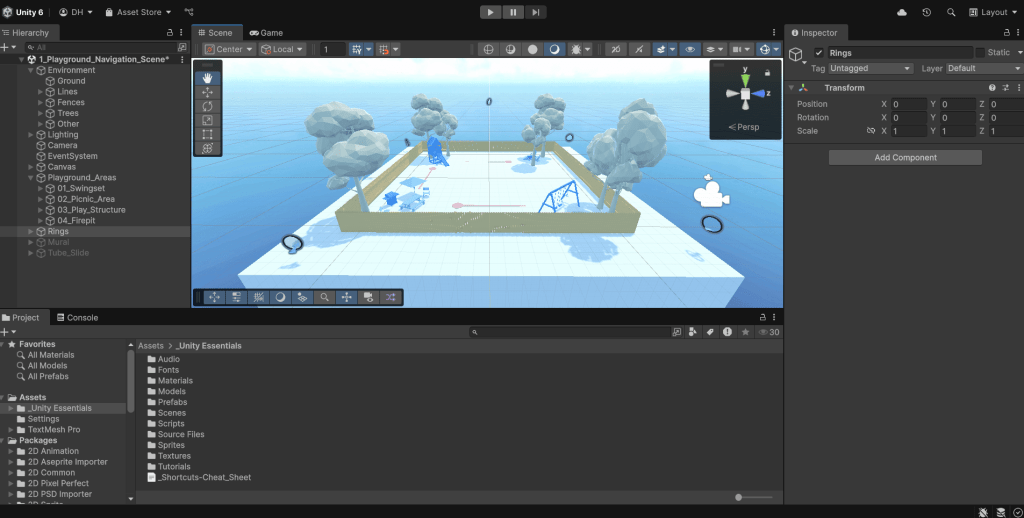
    This lesson consisted of three challenges. Each of which was progressively more challenging than the other.  First, the Easy challenge was to fly through the rings using the Q and E buttons. I managed to complete this easily.  

    Next task was to create another mural using the suggested layouts provided on screen. I chose the house first and then went a step further and did the cat. (Though I may want to work on my spacing between objects a little). 

    The final task was to put together a tube slide, which started in three separate pieces. It took a little time a patience to line the pieces up correctly, but I got there, and I’m happy with the result.  

    Mission One Quiz 

    The final lesson of my first mission was a quiz, in which I scored 4/5. I got an incorrect answer on the following question: 

    Incorrect answer: What happens when you use the Scene view gizmo to disable Perspective and enter Isometric mode?  

    I won’t tell you what the correct answer is, but if you’re following along or know, feel free to comment underneath with your answer. 

    Mission Two – 3D Essentials 

    My next mission is to get to grips with some 3D essentials. To do this I’ll be creating a kid’s bedroom with a bouncy ball which will hit a ramp before bouncing into some bricks to knock them over. By the end of this mission I should have learned how to create a 3D scene from scratch and add in some physics elements to be able to emulate what should happen when the ball hits the bricks.  

    Lesson One – Add furniture to the Kid’s room 

    Lesson one of my second mission involved dragging a prefab of a kids bedroom into the scene and populating it with some furniture in order to personalise the space. Additionally I learned how to use Transform to position a GameObject. 

    Lesson Two – Make A Bouncy Ball 

    Next lesson we add the bouncy ball and some physics to it. First I learned how to add a 3D primative to a scene, in this case a sphere, as well as how to add a material to it to give it colour. Then I add a RigidBody and a Mesh Collider to the ball to emulate the physics of gravity and collision.  

    Lesson Three – Make a tower of prefab blocks 

    In this lesson I added cubes to the scene and used the Scale tool to turn them into blocks. I then arranged the blocks on top of each other and grouped them into one prefab. I then learned how to edit a prefab in ‘Prefab Mode’, before creating an Empty GameObject to act as a parent for my prefabs which I had duplicated. Finally we arranged the blocks into position in front of the ramp so that they would get hit by the ball on the way down. Additionally we changed the mass of the ball to be able to knock the blocks over with its weight.  

    Lesson Four – Adjust the lights, background, and camera angle 

    Lesson Four was a shorter lesson where we adjusted the directional light to convey the time of the day. We also learnt how to place our camera at a better angle to capture the moment the ball hits the blocks, and finally changed the SkyBox to show a different background.  

    Lesson Five: More things to Try 

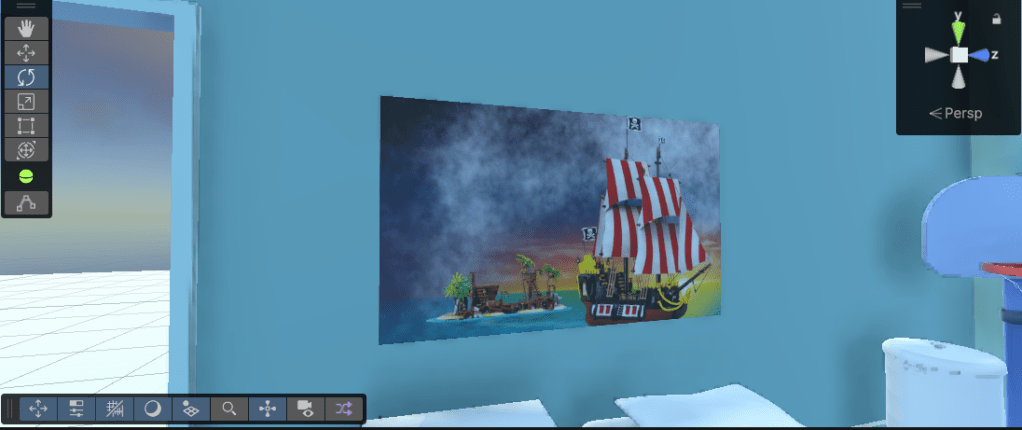
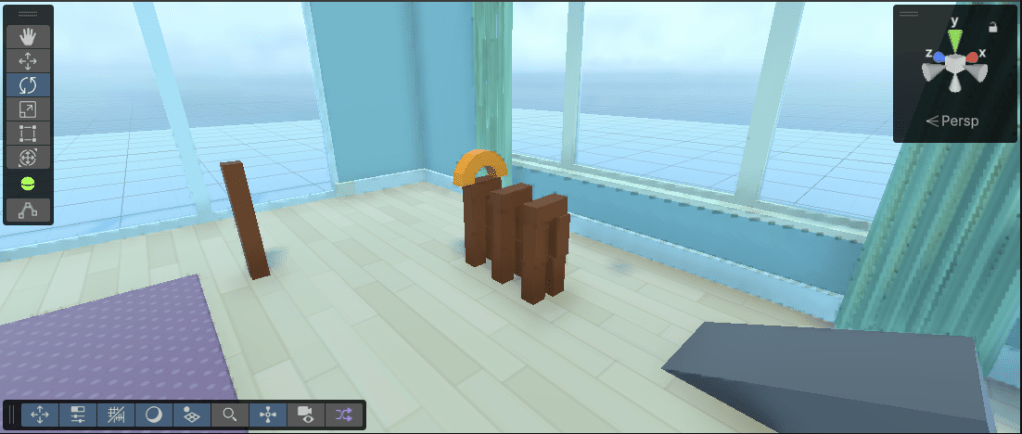
    The final lesson before the quiz were a set of challenges to try just like the previous mission. First we created a perfect block tower using vertex snapping. This one was quite easy to master. Secondly we added a different shape to the prefab. I chose an arch with an alternative material on it to make it stand out.  Finally, we added some custom artwork to the scene using a Quad, then placed the artwork on one of the walls.  

    Mission Two Quiz 

    Like the last mission, this mission ended with another quiz, in which I scored 4/5 again. The question I chose the wrong answer on was: 

    •  When you add a primitive 3D shape to your Unity scene, what happens?  

    I won’t tell you the answer, but feel free to comment underneath the post with your answer.  

    Summary 

    This week has been another fun week working through the Unity Essentials Pathway. I’ve really enjoyed getting stuck into the 3D Essentials and flew through the mission. Next up I plan to work through the Audio Essentials Mission, which is quite short at 40 mins, then work through the Programming Essentials Mission.  

    Catch you next time, 

    Dan 

  • Learning Diary Week One: Unity Editor Essentials

    Hello and Welcome Back.  

    So week one of my journey into games development has been fun. I’ve chosen a game editor and installed it, I’ve taken the time to get used to the interface, and navigated around my first 3D scene with ease. Four lessons in and I’m starting to get a feel on how to navigate around the interface and game windows. 

    Over these next few weeks I’m going to be focusing on completing the Unity Essentials Pathway, which is the first step into Unity Game Development. If you’d like to learn more about Unity Essentials you can find out more here: 

    Unity Essentials Pathway – Learn Game Development for Beginners | Unity LearnΒ 

    Lesson One – Installing Unity Hub and Install Unity Editor Version 6 

    Lesson One was an easy one for anyone who’s used a PC or laptop. It just consists of installing the Unity Hub, and from that choosing a version of the Unity Engine to install. I went with version 6 as that is the version the Unity Essentials tutorials use.  

    Lesson Two – Explore the Editor Interface 

    In lesson two we begin to explore the interface we’ll be using to create our games in. We start by loading up a project and then a scene from within the project, before we start framing GameObjects in the Scene view using the hierarchy window. 

    We also learn how to use the view and pan tools and how to start and stop play mode, before saving our scene and heading to the next lesson.  

    Lesson Three – Master 3D Scene Navigation 

    Navigation is the game in lesson 3 and here we pick up some useful tips for navigating around our scene using shortcuts and the useful Flythrough mode. We also learn how to Orbit around a framed object and how to switch your view of the scene from Perspective to Isometric.  

    Along the way these skills are tested with a little game within the scene where you have to find the four digits from each object in the scene to formulate a code which you then input to get a little reward. 

    Lesson Four – Pass the Scene View Flying Test 

    This lesson involves flying around the edges of your scene through a series of rings placed at various heights and angles using first the Orbit and Zoom approach and then Flythrough mode. By the end of this exercise you find yourself more comfortable with these modes and begin to navigate the scene with ease.  

    Summary 

    It’s been a fun first week taking my first steps into a different world. Whilst the Unity interface can seem a little overwhelming at first glance, once you start to learn a few navigation techniques and shortcuts, you find that you can navigate with relative ease. The little games and tests within each exercise make what would normally be tedious a little more fun, and I can’t wait to keep going.  

    Next week I’m aiming to finish the Editor Essentials Mission and get through a good chunk of the 3D Essentials Mission where I’ll really start to have fun as I manipulate my first 3D scene.  

    Catch you next time, 

    Dan