Hello and welcome back!
This week has been another bumper week of learning, focusing first on the Audio Essentials, before making a little game where you pick up collectable items in the Programming Essentials Mission.
If you’d like to learn more about Unity Essentials you can find out more here:
Unity Essentials Pathway – Learn Game Development for Beginners | Unity Learn
Mission Three – Audio Essentials
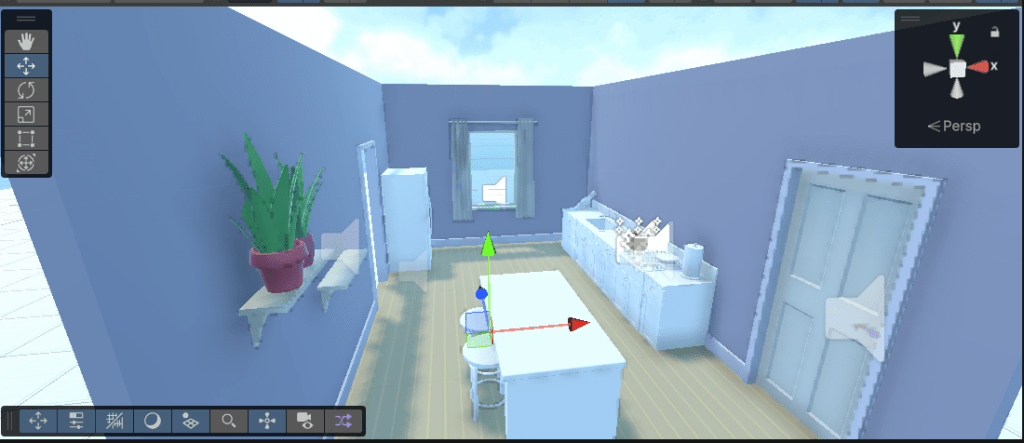
In this mission we use a kitchen prefab to create a scene with different sounds. We create an audio source for a boiling pot of water, as well as add background music and later add a humming sound for the refrigerator and some birds by the windows.
Lesson One – Create an immersive soundscape
In this lesson we learned the purpose of an audio source and audio listener, before adding a boiling pot to our scene and assigning it an audio source component, then we assigned the pot a sound, before setting the effect from 2D to 3D spatialized audio so that the sound played when approaching, but drowned out when walking away.
Additionally, we added some bird sounds near the windows and doors, also in 3D, and added some background music to the scene. I chose some suspenseful background music to add a creepy feel to the empty room with just the boiling pot. (Fatal Attraction anyone?)
Lesson Two – Audio Essentials: More things to try
After learning the basics of audio within the scene this lesson challenged me to put those skills to the test. First I added a 3D humming sound to the refrigerator which was quite easy to do. Secondly, we added some new background music to the scene. This was a great opportunity to scour the Asset Store and see what free assets they have and I chose some relaxing background music to give me scene a more serene feel. Finally, I experimented with different reverb zones before settling on the Room preset.
Lesson Three – Mission 3 Quiz
The Audio Essentials mission finished with a quiz, which I scored 100% on this time. My first 100% mark! 😀
Scored: 3/3
Mission Four – Programming Essentials
Mission Four has me learning the basics of programming in Unity. Whilst I was walking into this mission with an advantage as I was previously a C# Programmer, this section of the course is laid out for anyone who has no programming experience, so if you’ve never written code before, don’t worry, this is actually a good introduction.
Before diving into the lessons for this mission, check that you have and IDE Environment installed which you can edit the code from. If you haven’t don’t worry, just head to your installs in Unity Hub, look for your editor version, click Manage, and choose Add Modules. From there you’re able to install Visual Studio Community, which is what I’m using here and also recommended by Unity.
Lesson One – Add a movement script
Our first lesson for this mission shows us how to create a new script component within Unity and add it to your GameObject, before opening the script within your IDE. Here we get our first glance of how scripts are structured, though if your first starting out it may not make too much sense to you yet.
Finally we add the camera as a child of the Player game object so that it follows the player in Play Mode, and we learn how to temporarily adjust properties such as speed so you can determine the right value to use.
Lesson Two – Create a rotating collectable
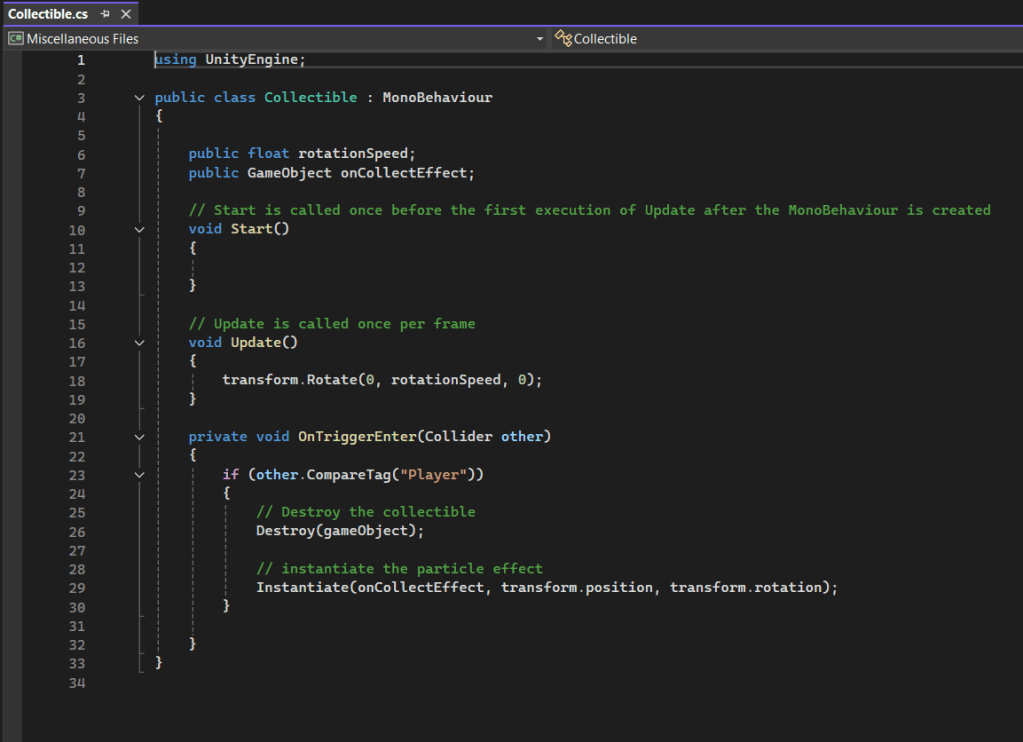
Next we start to dive into the script itself and take our first steps at writing code. We learn about Using statements and the MonoBehaviour class that all Unity scripts use. We take a look at the first methods within the script, Start() and Update(), before adding a transform function to the Update() method which allows us to rotate the collectable.
We also learn how to apply the correct data types in code, declare new custom variables, and how to apply correct naming conventions to variable and methods. This is a busy lesson!
Lesson Three – Collect the collectable
To round out the week I learned how to duplicate my rotating collectable and add code to allow it to be collected. To do this, we first setup a collider as a trigger instead of a physical boundary, this allows the player to move through the object. Second we need to apply the OnTriggerEnter() method to detect the collision between the player and the object. Within that we use the destroy function to remove the object from the scene.

Next to add a little flair to our scene, we add a particle effect as a visual effect to the collectible using the GameObject public variable within our code, then calling that using the Instantiate() function to blow up our collectible as it’s collected.
Finally we learn how to apply tags to GameObjects in order to be able to identify them within a script, and used that tag within an IF() statement to identify if it was the player colliding with the object.
Summary
Phew! What a week! It’s been a busy one, and I really feel as though I’m starting to get the basics of working with Unity now. I’m looking forward to finishing off the programming mission over the next week, and hope to take steps into the 2D mission next week too.
I really feel as though I’m picking up some basic skills now and have started to think about setting myself a little project once I’ve completed the Unity Essentials Pathway to test out my new skills with a basic game. I won’t share to much today, but keep your eyes out over the next couple of weeks for my first independent project.
Catch you next time,
Dan
 Dan Does Games
Leave a comment